MKDocs setup
Install Python 3
- install newest 64 bit python for windows, be sure to check
add python to pathwe used 3.10.2 64 bit (Feb.2022) python.org - check if python is in path variable
- if not try to logout and login, or restart
- if this doesn't help add your Python path to Path variable
Install Git
- use default settings
Install Tortoisegit
- use default settings
Register
- only accessible via company network
Setup SSH key
- for setup right click on desktop and "Git Bash Here" and after entering SSH keygen command select "no passphrase"
Add SSH key to user settings
- name the key
Connect to WiFi
Warning, company network problem
You can't use python pip on company network because repositories are blocked by firewall.
- disable ethernet connection to Muehlbauer network
- enable wifi and connect to MBGUEST
- try connecting to any webpage until you get Kaspersky warning, disable it's warnings for 30 mins until we complete mkdocs installation.
Install MKDocs
Run commands in powershell
Now we install mkdocs self hosted server that uses python:
python -m pip install mkdocs
This will install a nice theme:
python -m pip install mkdocs-material
Warning
Git repo account and SSH key is needed in order to clone and change the documentation.
And now we clone our documentation project:
cd %UserProfile%
git clone git@172.18.48.255:Documentation/RoseRT_Documentation.git
Confirm with "yes".
Note
Inside this repository, there are documentations Markdown files including the one you're reading right now. Also there is configuration and script to run server on your local machine. You will commit your changes of docs to this repo.
Run server and start editing
Open this directory and double click on runserver.bat
%UserProfile%\RoseRT_Documentation\
Note
runserver.bat script works properly only if repo is cloned into your user directory: C:\Users\YourUserName\RoseRT_Documentation
Open this local URL in your web browser:
http://127.0.0.1:8000/
Success
Congratulations, you can start contributing to documentation.
For editing use Visual Studio Code from which you can directly commit and push files to the repository
Downloading and uploading files
to get the latest version use:
- Graphical interface of TortoiseGIT:
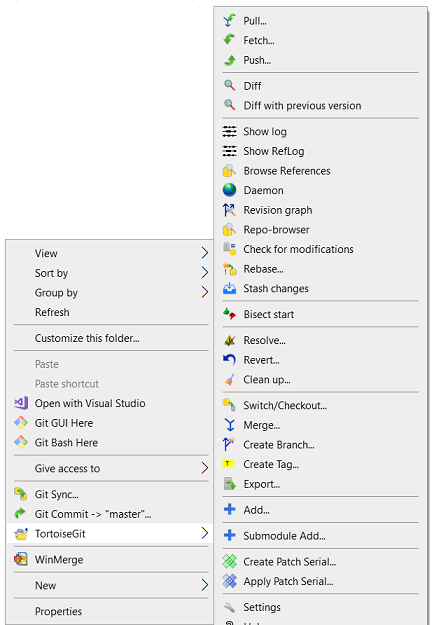
or
- GIT command window
Commands
download objects to the local machine without overwriting existing local code in the current branch
git fetch
downloads all objects to the local machine in the current branch
git pull
upload local repository content to a remote repository
git push